
Accessibility
This new feature, available since 7.5.15, can be accessed as soon as a configurator has been defined:
- A table family defining the columns of the table field (fields) : This family is not accessible to users
- A table template linked to the Table family: this template defines the number of table rows and the parameters for each table cell (mandatory, read-only, default value).
- A Table type field associated with the table model defined above and added to the standard type family.
This feature allows you to associate a table with a record available on the creation form or in editing mode.
This table can also be viewed in read-only mode from the grid.
Entering a table field
Depending on how the table has been configured, a cell in the table field may be free, mandatory, default or read-only.
From a table containing the table field, click on the “add” button.
The creation window opens:
Complete the table fields, then click on the table icon.
Here’s an example of how to configure the table field. This table contains 3 rows and different types of fields, some of which are free and others with predefined criteria:
- Field (1) is underlined in red; it is a mandatory field.
- Field (2) is read-only
- Field (3) contains default data
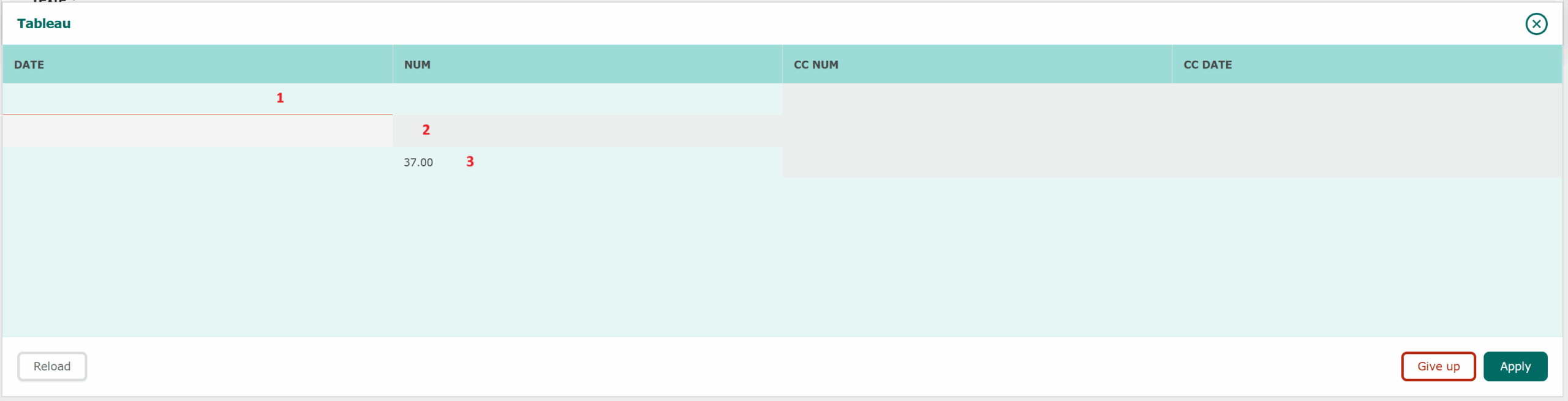
Once all the fields have been completed, click on the “Apply” button.
This brings us back to the creation window. To create the record containing the table data, click on the “Create” button.
The element containing the array field is created.
By clicking on the “Table” icon, you can view the current data in read-only mode.
Modifying a table field
Select your record and click on “edit”.
From the “Edit” window, click on the table icon.
Enter the required information. In the event of several incorrect entries, you can click on the “Reload” button. This reloads the data originally present when the table was opened.
When you have finished entering data, click on “Cancel” to cancel, or on “Apply” to save your changes.
From the “Edit” window, click on “Validate” to accept the changes.
Click on the “Table” icon from the grid to view changes.
The changes have been taken into account.