
Accessibility
The creation of a record is subject to the management of the connected user’s rights. If you do not have the rights defined in the administrator interface, the creation icon will be grayed out.
Record creation
- Click on
 in the toolbar
–
- Enter your data in the form that opens
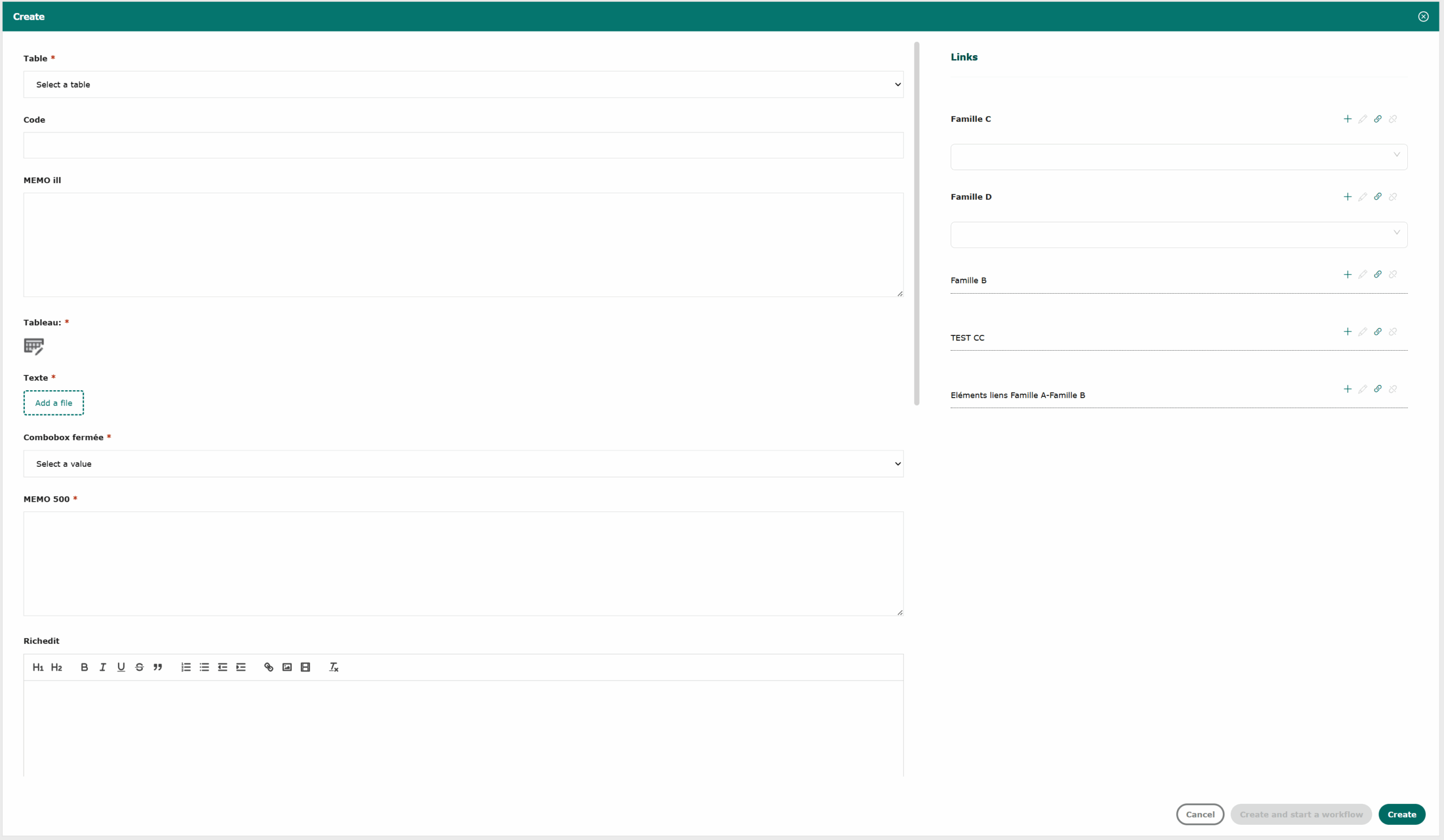
–
- Click on “Create” to save your entry

–
Types of fields available in a form
An input form is specific to each family, and is made up of fields of different types and linked tables.
The form allows you to enter data in fields specific to the table to which the record corresponds.
The available fields are listed below:
- EDIT/TEXT: a 100-character string
- EDIT/URL: a 500-character string describing a valid URL
- COMBOBOX/OPENNED LIST: an open list, with no predefined values.
- COMBOBOX/INDEXED CLOSED LIST: a closed list, in which predefined values are defined (limited to 4000 characters).
- CHECKCOMBOBOX/PREDECESSORS: a list from which the user can select several values, associated with the current table record.
- CHECKCOMBOBOX/MULTIPLE INDEXED CLOSED LIST: identical to a INDEXED CLOSED LIST, with the option of selecting multiple values.
- MEMO/TEXT: a larger text than EDIT/TEXTE, with a string of 500 or 4000 characters depending on the configuration.
- MEMO/UNLIMITED TEXT: identical to MEMO/TEXTE, with no character limit.
- NUMBER: a number for which you can set the number of decimal places and choose the unit.
- DATE: a date, displayed in English notation JJ/MMM/AAAA.
- DATE/TIME: date and time display.
- HOUR: time display.
- RADIOBUTTON: identical to COMBOX/CLOSED INDEXED LIST, displayed as a radio button in forms.
- RICHEDIT: RTF text, used to nest stylized Word™ or Excel™ text.
- IMAGE: a PNG/JPG file.
- CHAMP CALCULÉ: corresponds to a formula that will execute actions on one or more other fields in the data source. This field cannot be modified by the user; it is read-only.
- CHAMP TABLEAU: field containing cells.
EDIT, RICHEDIT (using character attributes) and MEMO are multi-character fields linked to the description: they differ in the number of character limits.
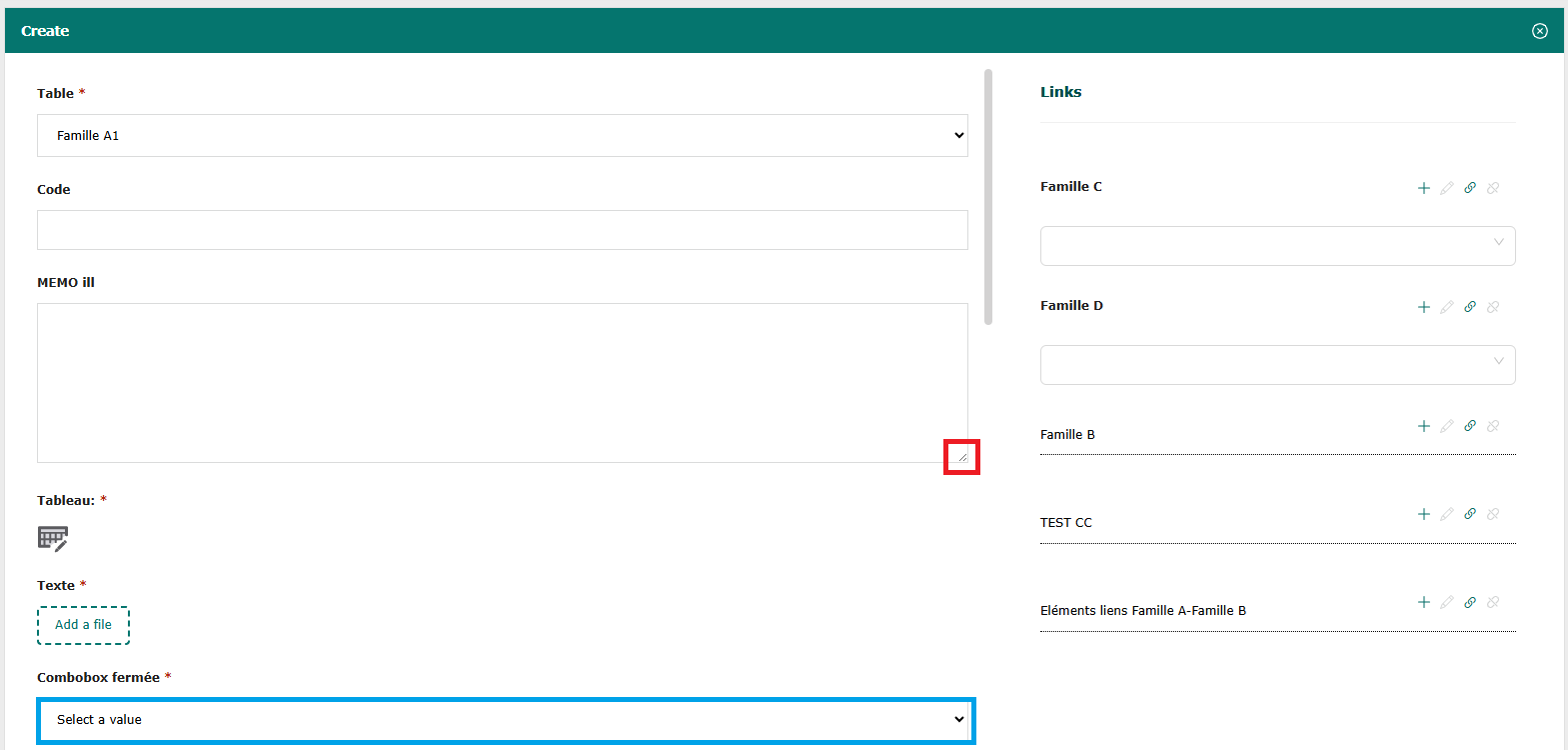
In the form, the small diagonal lines (framed in red) enlarge the text field to make the content more visible. Simply position the cursor over the field, click, and expand the window to the desired size.
Selection arrows allow you to choose pre-set values (framed in blue).
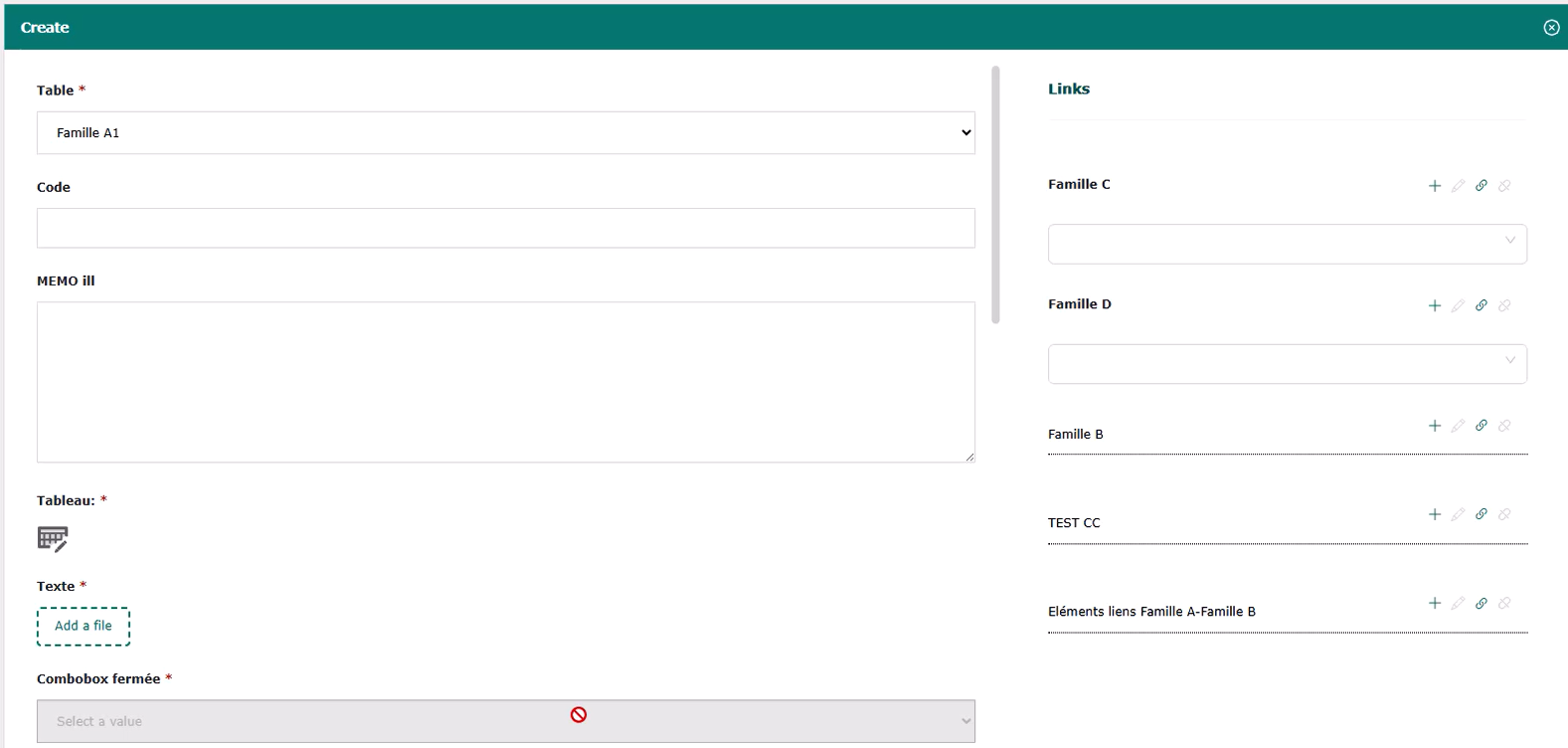
Some fields can be locked during configuration. Hovering the cursor over these locked fields displays the locked logo. The field is indicated as Read-only, with no modification possible.
–
Image files can be inserted by dragging and dropping.
Some fields may be defined as mandatory during configuration, in which case they are marked with a red star (*). If these mandatory fields are not completed, the form cannot be created or saved.

Fields can also contain a default value (assigned when a new record is created), and be read-only (configurable from the administrator interface).
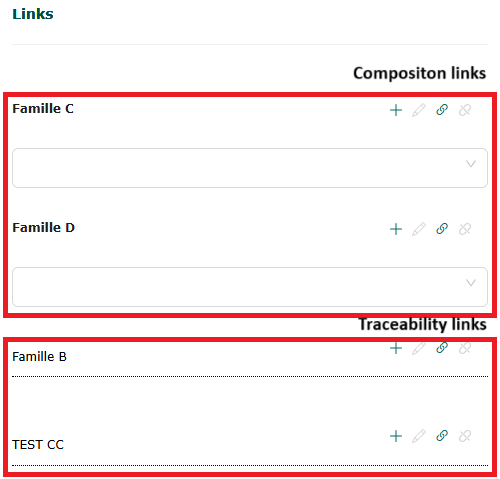
In the right-hand section of the form, there’s a “Links” category that lets you link and/or create records belonging to a linked table. We have 2 types of links.
Form registration
Once the data has been entered, the form is saved by clicking on the “Create” button in the bottom right-hand corner.
–
Si un workflow est sur la table, vous pouvez créer et démarrer le workflow lors de la création de votre enregistrement.
–
If all mandatory fields are not completed, a message reminds the user to complete them.

–
After clicking on “Create”, the form is automatically closed and the record appears in the main grid. An element creation confirmation appears in the top left-hand corner of the main grid.
