
In brief: User menu, Application change, Project change, Menu search, Favorites, Workflows to sign, Workflows on hold.
This button allows you to be redirected to the application’s home portal at any time.
The application home page is divided into 5 sections:
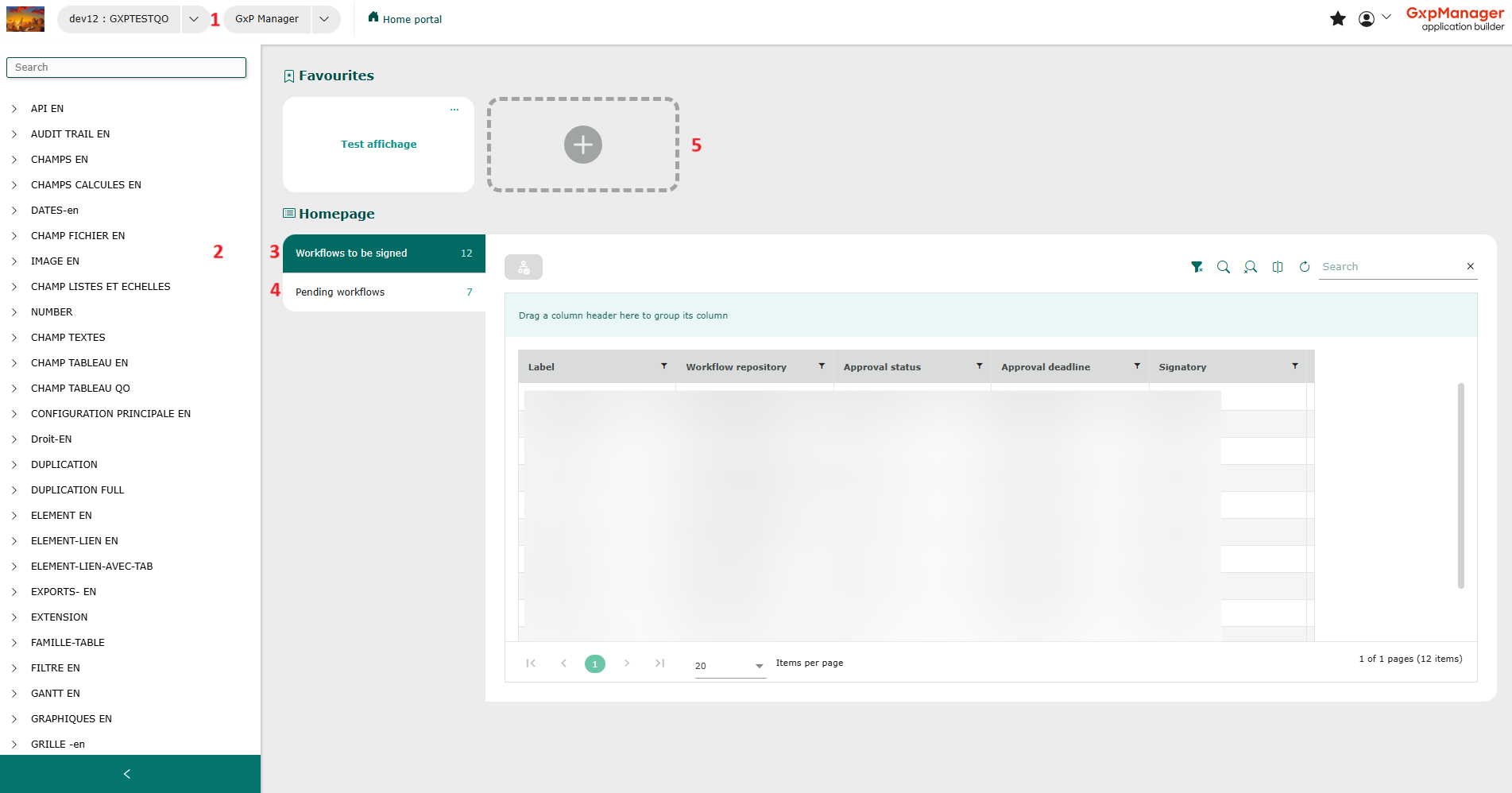
- The header : Access another application / Change project. Go to user menu
- The menu: Display the menu and select a group, family or table to display and manipulate records.
- Signing workflows: Editing and signing elements
- Pending workflows : View the list of pending workflows for which the user is not a signatory.
- Favorites: View or add favorites
The header
By clicking on the arrow next to the application name (in the header, top left of the page), you can access the available applications. (1)
Several projects can be present in an application. These projects all have the same structure, but the data is specific to each one. To change projects within an application, click on the arrow next to the name of the active project, then select the desired project. (2)

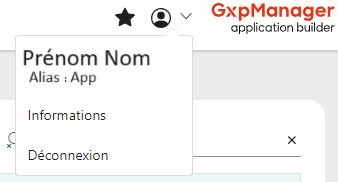
In the menu at the top right of the page (down arrow), you’ll find your first and last name, the name of the application you’re connected to, as well as an “Information” section and a “Logout” section.
The menu
The menu in an application breaks down into 3 levels: a group, a family and a table.
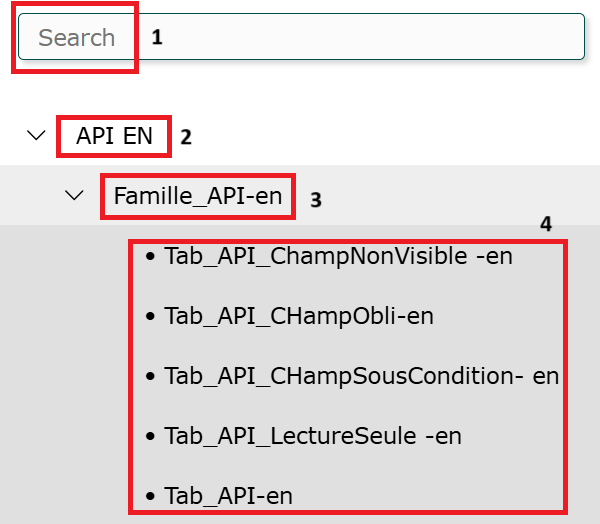
- Search in menu: you can search for a family, table or group by entering the first letters of the family or table in the “search” field at the top left of the screen.
- Group: A group brings together families and tables.
- Family: A family is a group of tables. When a family has a single table, the family is visible in the menu.
- Table: Several tables can be defined for a family; a table is the location in which the data will be stored.
Workflows
- Pending workflows: A list of pending workflows can be consulted. These are workflows in which the logged-in user has participated and which are now awaiting signature by another user.
- Workflows to be signed: From the home screen, you can consult the list of workflows to be signed by the user logged into the application. By clicking on the hyperlink of an item, the user can view the input form, complete it if necessary, validate and sign. The input form opens, allowing you to check and/or add data, then click on the “Validate and Sign” button.
Favorites
The Favorites section gives you shortcuts to tables you use frequently.
- Click on “Add a favorite
- Define a name for your favorites
- Select the desired table
- Select either Display or Input. The “Display” type is used to display the favorite table. The “Input” type directly opens a form for the selected table.
You can edit or delete your favorites by clicking on the three dots at the top right of a favorite.
Information
This feature is useful when you have access to several GxpManager applications.